Dax Pro Premium .NET Static Site Generator Theme Decap CMS
Premium .NET static site generator theme with Decap CMS built in. Blazor WASM alternative for content sites. Zero JavaScript runtime, Lighthouse 100, production-ready.
dotnet • blazor • static-site-generator • razor • decap-cms • themes • template • premium-themes • premiumthemes •
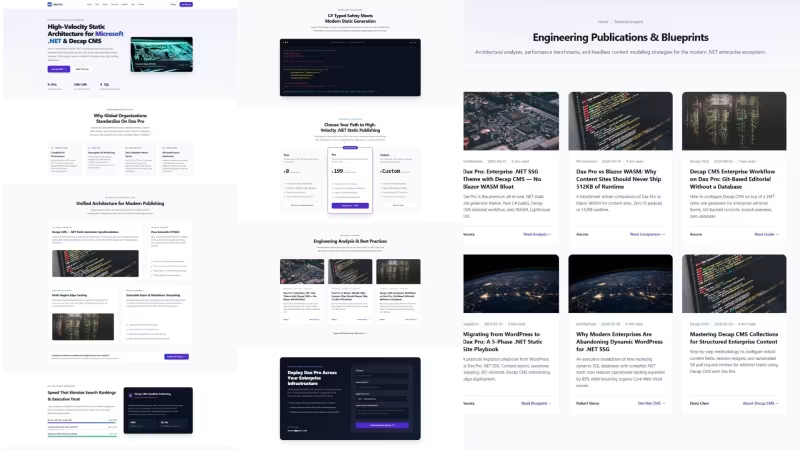
Dax Pro Premium .NET Static Site Generator Theme Decap CMS
Introduction
Dax Pro is a premium .NET static site generator theme built on the open-source DAX engine. It ships with Decap CMS pre-configured, eight production-ready layouts, thirty-plus partials, and complete deployment configs for Netlify, Vercel, and Cloudflare.
It is designed for teams building content-heavy sites — marketing pages, blogs, documentation, service catalogs — who want the speed and security of static HTML without the 512KB WASM runtime tax of Blazor, the server overhead of Razor Server, or the database vulnerability surface of WordPress.
Pure C#. Pure static. Pure speed.
Why Dax Pro (and Not Blazor WASM)
Blazor WASM is a fantastic framework for interactive applications. For content sites, it is the wrong tool. The runtime alone is 512KB. Boot time is over two seconds. Hydration cost hits every page load. Lighthouse scores typically land between 70 and 85.
Dax Pro produces pure HTML at build time. The browser receives finished HTML and renders it immediately. There is no WASM, no hydration, no client-side .NET runtime. Lighthouse 100 out of the box. Build time 0.04 seconds for 49 pages. First paint in 50 milliseconds.
For content, Dax Pro wins on every measurable dimension. For dashboards, use Blazor. For stores, use Shopify. Use the right tool.
Features
Dax Pro ships with:
- 8 production-ready layouts — Home, About, Services, Service Detail, Blog, Blog Detail, Contact, Docs
- 30+ pre-built partials — hero, trust, solutions, performance, showcase, pricing, insights, contact form, navigation, footer, SEO
- Decap CMS pre-configured — 8 collections ready to edit: Settings, Navbar, Footer, Homepage, Posts, Services, Pages, Contact
- Zero-config deployment —
netlify.toml,vercel.json, GitHub Actions workflow included - Automatic SEO — sitemap.xml, robots.txt, RSS feed, OpenGraph meta, Twitter Cards, JSON-LD structured data generated on every build
- Pure semantic HTML5 + CSS3 — one
style.cssfile, onemain.jsfile, zero framework dependencies - WCAG 2.1 AA accessible — full keyboard navigation, ARIA landmarks, screen reader support
- Lighthouse 100 — Performance, Accessibility, Best Practices, SEO
- Lifetime updates — every new version at no additional cost
- Commercial license — unlimited projects, unlimited clients
Technical Stack
Dax Pro runs on:
- .NET 8 LTS and .NET 9
- Pure C# engine — single
Program.cs, 800 lines, zero external dependencies - Decap CMS — open-source, Git-based editorial interface
- Markdown + YAML content — versioned in Git, portable, readable
- Zero NPM packages — no
node_modules, no build step, no dependency tree - Zero third-party JavaScript — every script is self-hosted and auditable
Installation
Requirements: .NET 9 SDK installed on your machine. Download from https://dotnet.microsoft.com/download.
After purchase, download the theme ZIP from your Gumroad library. Extract it to a folder without spaces in its path.
Open a terminal in the project folder and run:
dotnet run -- build
dotnet run -- start
Open http://localhost:8080/ in a browser. The site runs locally.
For production deployment, push the project to GitHub and connect the repository to Netlify. Netlify builds automatically on every push. The first deploy goes live in under five minutes.
Architecture
The Dax Pro project structure:
dax-pro/
├── Program.cs
├── Dax.csproj
├── netlify.toml
├── vercel.json
├── _data/
│   ├── metadata.yaml
│   ├── nav.yaml
│   └── footer.yaml
├── content/
│   ├── index.md
│   ├── about.md
│   ├── contact.md
│   ├── privacy.md
│   ├── terms.md
│   ├── license.md
│   ├── posts.md
│   ├── posts/
│   ├── services.md
│   ├── services/
│   └── tags.md
├── templates/
│   ├── layouts/
│   └── partials/
├── public/
│   ├── css/style.css
│   ├── js/main.js
│   ├── images/
│   └── admin/
└── site/
Configuration
All site-wide configuration lives in _data/. Three files control everything.
_data/metadata.yaml — site identity and SEO defaults:
title: "Your Site Name"
description: "A modern static site built on .NET with Decap CMS."
url: "https://yourdomain.com"
icon: "/images/favicon.webp"
image: "/images/hero.avif"
author: "Your Name"
_data/nav.yaml — brand wordmark and navigation:
brand:
  symbol: ".NET"
  name: "DAX"
  accent: "PRO"
items:
  - title: "Home"
    url: "/"
  - title: "About"
    url: "/about/"
  - title: "Services"
    url: "/services/"
  - title: "Insights"
    url: "/posts/"
_data/footer.yaml — footer columns, compatibility badges, legal links.
The configuration is documented chapter by chapter in the included documentation.
Content
Every page, post, service, and tag page is a Markdown file in content/. Each file has a YAML frontmatter block at the top and a Markdown body below.
Homepage (content/index.md):
---
layout: home.dax
title: "Your Site Name"
description: "A modern static site built on .NET."
hero:
  kicker: "Modern Static Site Starter"
  title: "Build Fast with .NET"
  lead: "A production-ready starter theme built on .NET."
  image: "/images/hero.avif"
---
Blog post (content/posts/my-first-post.md):
---
layout: "post.dax"
title: "My First Post"
description: "A short summary for search engines."
image: "/images/my-post-cover.webp"
date: 2026-10-21
category: "Guides"
read_time: "5 min read"
author: "Your Name"
tags: ["static", "guides"]
excerpt: "A short summary for the listing card."
---
The body of the article goes here.
Blog listing controller (content/posts.md):
---
layout: "posts-list.dax"
title: "Latest Insights"
description: "Articles and case studies."
collection: "posts"
pagination: 6
---
Media
Place all static assets in public/. CSS, JS, images, and any other file are copied verbatim to site/ on every build. Reference them from templates with a leading slash: /images/hero.webp, /css/style.css, /js/main.js.
For Decap CMS, uploads go to public/images/ automatically. The media library handles file selection and path insertion.
Deployment
Three deployment configs are included. Choose the platform that fits your team.
Netlify — recommended. Automatic builds from GitHub, Netlify Identity and Git Gateway for Decap CMS, free HTTPS and custom domain.
Vercel — builds from GitHub with the included vercel.json. Does not support Decap CMS natively; use the Netlify admin subdomain strategy for production CMS.
Cloudflare Pages — requires a build.sh script that installs .NET 9 and runs the build. Does not support Decap CMS natively; use the Netlify admin subdomain strategy.
After deployment, connect a custom domain in the host dashboard. SSL is provisioned automatically via Let's Encrypt.
Decap CMS — Complete Guide for Non-Technical Users
Decap CMS is pre-configured at /admin/. Editors log in with Netlify Identity credentials — no GitHub account required. Every content change commits to Git, triggers a rebuild, and deploys to the edge.
Step 1 — Enable Netlify Identity. Open the Netlify dashboard, select your site, click Integrations → Identity, click Enable Identity. In Registration preferences, choose Invite only, click Save.
Step 2 — Enable Git Gateway. Still on the Identity page, scroll to Services, click Enable Git Gateway. When Netlify asks for a GitHub access token, paste the personal access token with repo and workflow scopes. Click Save.
Step 3 — Invite yourself. On the Identity page, click Invite users, enter your email, click Send. Open the email, click Accept the invite, set a password, click Sign up.
Step 4 — Disable local mode. Open public/admin/config.yml in VS Code, find the line local_backend: true, delete it. Commit and push. Wait 30-60 seconds for Netlify to rebuild.
Step 5 — Log in to Decap CMS. Open https://your-site.netlify.app/admin/, click Login with Netlify Identity, enter your email and password, click Log in. You land on the dashboard.
The left sidebar shows 8 collections: Settings, Navbar, Footer, Homepage, Posts, Services, Pages, Contact Page.
Step 6 — Edit your first content. Click Settings → Site Metadata, change the Title field, click Publish. Wait 30-60 seconds, open the site, hard-refresh. The title has changed.
Step 7 — Add a new blog post. Click Posts → New Post, fill in the form (title, description, image, date, category, readtime, readmore, author, tags, excerpt, body), click Publish. The post appears at /posts/.
Step 8 — Add a new service. Click Services → New Service, fill in the form (title, description, image, index, read_more, date, tags, cta), click Publish. The service appears at /services/.
Step 9 — Change homepage content. Click Homepage → Home Page. Every section appears as a form: Hero, Trust, Solutions, Performance, Showcase, Pricing, Insights, Contact. Edit the field you want, click Publish.
Step 10 — Upload an image. On any form with an image field, click Choose an image. The media library opens. Click Upload, choose a file, the image uploads to the repository via Git Gateway. Click the image to select it.
Step 11 — Invite another editor. Open Netlify → Identity → Invite users, enter the editor's email, click Send. The editor opens the email, accepts, sets a password. The editor logs in at /admin/ without needing a GitHub account.
Step 12 — Roll back. Open Netlify → Deploys, click an older deploy, click Publish deploy. The site reverts to the older version.
Tips for new editors. Do not edit fields you do not understand. Preview before Publish. Publish one change at a time. Do not delete collections. Tags are always lowercase. Upload images before Publish.
Troubleshooting. /admin/ blank page — open DevTools, check console. Login fails — check the Identity user list, invite if missing. Publish fails "Failed to persist entry" — Git Gateway is off or token expired, regenerate the token on GitHub, paste again. Changes do not appear — wait 60 seconds for Netlify to finish building. Image upload fails — compress the image, check the repo scope on the token.
Update Dax Pro
Dax Pro includes lifetime updates. When a new version releases:
- Back up the project —
cp -r dax-pro dax-pro-backup-$(date +%Y%m%d)orgit tag pre-update-v1.1 - Download the new version ZIP from your Gumroad library
- Extract to a separate folder, do not overwrite your existing project
- Compare files with
diff -rq dax-pro dax-pro-backup-*— see what changed - Copy changes into your project one at a time
- Test locally with
dotnet run -- buildanddotnet run -- start - If tests pass, push to GitHub
- If tests fail, roll back from your backup or Git tag
Support
Dax Pro includes email support with a four-hour response target. Support covers installation, build issues, Decap CMS configuration, and deployment questions.
For custom .NET architecture, migration from WordPress or another CMS, or AI integration, hire the Dax Pro team on Fiverr: https://www.fiverr.com/creativitas/design-your-website-with-progresive-web-application
Download and Demo
Buy Dax Pro on Gumroad: https://creativitaz.gumroad.com/l/dax-pro
Live demo: https://daxpro.axcora.com
Free DAX engine: https://dax.axcora.com
Try before you buy: the open-source DAX engine is available at https://github.com/mesinkasir/dax
The free engine includes the C# build system, template engine, collection system, and automatic SEO generation. Dax Pro adds the premium theme layer, Decap CMS, deployment configs, and full documentation.
URL: https://www.hockeycomputindo.com/themes/dotnet/net-static-site-generator-premium-themes-decap-cms-headless/
Embed — Cloudinary
Dax Pro Premium .NET Static Site Generator Theme Decap CMS
https://www.hockeycomputindo.com/themes/dotnet/net-static-site-generator-premium-themes-decap-cms-headless/
DOWNLOAD →Own 100%
Dax Pro Premium .NET Static Site Generator Theme Decap CMSPremium .NET static site generator theme with Decap CMS built in. Blazor WASM alternative for content sites. Zero JavaScript runtime, Lighthouse 100, production-ready.
DOWNLOAD →DEMO →Features
dotnet
microsoft-tech
c
premium-theme
decap-cms
auto-seo
auto-collections
yaml-json-data
markdown-content
pure-c-engine
modern-host-support-netlify-vercel-cloudflare-github-pages-and-others
build-production-host-firebase-surge-cpanel-vps-direct-admin-plesk-and-others
← Static Python Django website themes templateMinimal Dotnet Themes DAX SSG →
Need Custom?
Hire via Fiverr Escrow
72+ verified reviews, escrow protected.
ORDER CUSTOM →Selected Premium Themes
A focused collection, not a marketplace.


Custom Web Architecture
Escrow Protected
Headless Commerce, Booking OS, SSG & Vision AI - Custom built for your business - Commerce, Booking, SSG, AI - Built to own, not rented.
Own 100% .NET Engine - 12ms Build No Lock
Slow builds & rented platform? DAX .NET 8 static builder - 12ms compile, zero bloat, single binary, immutable infra you control forever. Own source, not subscription.
Order Now -> 02 — AI AutomationForensic Self-Hosted AI - Vision Finance & Autoblog
Stop giving data to cloud. SAEDI Vision runs on your infra - forensic audit trail, vision intelligence, finance automation, 100% auditable. Own pipeline & data.
Order Now -> 03 — Static Site GeneratorPython-First SSG - No Ruby Node Headache
Sick of gem & npm conflicts? Pycora is Python-native - own your pipeline, no dependency hell, no Jekyll, no Astro, just clean Python build.
Order Now ->