BlazorForge — Production-Ready Blazor Web Themes for .NET Developers
BlazorForge is a premium Blazor WebAssembly theme built for .NET developers who need enterprise-grade UI, Microsoft Fluent 2 design system, Decap CMS, and full C# source code in one lifetime license.
blazor-themes • blazor-webassembly • dotnet-themes • blazor-templates • blazor-ui-components • fluent-design-blazor • enterprise-blazor • csharp-razor • aspnet-core-themes • premium-blazor-themes • premiumthemes •
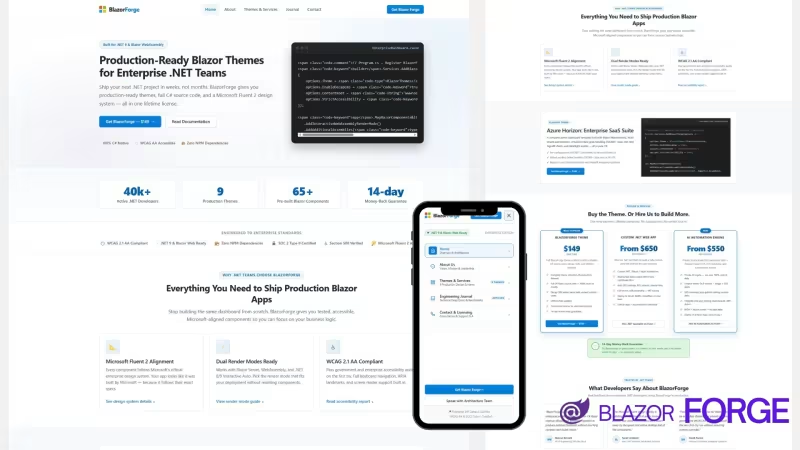
BlazorForge — Production-Ready Blazor Web Themes for .NET Developers
Why BlazorForge Exists
Every .NET developer eventually hits the same wall. You've built your backend with Clean Architecture, your APIs with minimal endpoints, your database with EF Core. Everything is fast, typed, and testable. Then you open the frontend and realize you need to spend the next three months building a navigation menu, a card layout, a form with validation states, a data grid with sorting and pagination, and about forty other components — none of which differentiate your product.
BlazorForge was built to solve exactly this problem. It is a production-ready Blazor WebAssembly theme that gives you a complete, accessible, Microsoft-aligned UI foundation in a single afternoon instead of a single quarter. You write the business logic. BlazorForge handles the interface.
What Makes BlazorForge Different
Most Blazor themes on the market are ports of React or Vue templates. They ship with hundreds of kilobytes of JavaScript, rely on npm build chains, and feel foreign the moment you try to customize them. BlazorForge is different because it was designed from the first line as a native Blazor application.
Every component is a C# Razor component. Every style is written in plain CSS with design tokens that follow the Microsoft Fluent 2 specification. There is no JavaScript bridge, no React wrapper, no TypeScript compilation step. When you edit a component, you edit C#. When you inspect an element, you see the exact class names you wrote. When you build, you run dotnet publish and nothing else.
This matters more than it sounds. Themes that use JavaScript wrappers introduce latency, break debugging tools, and force you to learn two ecosystems. BlazorForge keeps you inside .NET the entire time.
Microsoft Fluent 2 Alignment
BlazorForge follows the Microsoft Fluent 2 design system. This is the same design language used in Azure Portal, Microsoft 365 admin centers, and Entra ID dashboards. Buttons, cards, typography, spacing, elevation, and focus states all match the specification.
For enterprise projects, this is a significant advantage. Stakeholders who spend their day inside Microsoft tools will recognize the interface immediately. Accessibility audits pass on the first attempt because Fluent 2 is already WCAG 2.1 AA compliant by design, and BlazorForge implements it faithfully.
Built-In SEO and Structured Data
BlazorForge ships with an SEO service that handles the entire meta tag pipeline automatically. Page titles follow a template. Descriptions fall back to site defaults when a page does not specify one. Canonical URLs are generated from the current route. Open Graph tags, Twitter Card tags, and JSON-LD structured data for Organization, Article, FAQ, and Breadcrumb are all generated without any configuration.
You can override any value per page through YAML frontmatter. If a journal article needs a different OG image, you set it in the article header. If a service page needs a specific canonical URL, you set it in the markdown. Everything else inherits from the site-wide SEO configuration stored in data/seo.json.
Decap CMS Integration
BlazorForge includes Decap CMS as an optional admin panel. Content editors can log in through a browser, edit journal articles, update service pages, change the site name, modify the navigation menu, and publish changes without touching a single file. Everything is stored as Markdown and JSON files, so the content remains portable and version-controlled.
The CMS works in two modes. In local mode, it runs on your development machine and saves changes directly to your working directory. In online mode, it connects to GitHub through Netlify Identity and Git Gateway, allowing your entire team to edit content from anywhere in the world.
What You Get in the Package
The BlazorForge download includes the complete Blazor WebAssembly project, seven production-ready pages, sixty-five pre-built components, the Decap CMS admin panel with configuration, the Markdown content structure, Microsoft Fluent 2 design tokens, and sample content covering five journal articles and four service pages.
You also receive full documentation covering local installation, running the development server, editing content with Decap CMS in local mode, and deploying to production with GitHub and Netlify. Every step is written for developers who have never used Blazor before.
Who BlazorForge Is For
BlazorForge is for .NET developers building internal tools, admin dashboards, SaaS applications, or enterprise portals who need a production-grade UI without spending months on design. It is for agencies with recurring Blazor projects who want a reusable foundation. It is for enterprise teams who need Microsoft-aligned components that pass accessibility audits. It is for freelancers who want to ship client work faster.
It is not for static content sites, projects without .NET, or anyone looking for a hosted SaaS product. If you are building a blog or documentation site with no interactivity, tools like Astro, Hugo, or DAX will serve you better. BlazorForge is a foundation for interactive applications.
Pricing and License
BlazorForge costs $149 as a one-time payment. This includes the full source code, all seven pages, the complete component library, Decap CMS integration, documentation, and lifetime updates. There are no subscriptions, no per-project fees, and no recurring charges.
The license allows unlimited personal and commercial projects, including client work, SaaS products, and internal enterprise applications. The only restriction is reselling the theme itself as a competing template product.
Documentation
The following documentation covers every step of installation, configuration, content editing, and deployment. Follow the sections in order if you are new to Blazor. Skip to the section you need if you already know the basics.
Installation Guide
BlazorForge requires the .NET 9 SDK. Download the installer from the official Microsoft .NET download page and run it. On Windows, choose the x64 installer. On macOS, choose the package that matches your chip architecture. On Linux, use your distribution's package manager or follow the official installation instructions.
After the installer finishes, open a new terminal window and run dotnet --version. You should see a version number starting with 9.0. If the command is not recognized, close the terminal and open a new one. On Windows, you may need to restart the Command Prompt after installation.
Extract the BlazorForge ZIP file to a location you can easily access, such as C:\Projects\BlazorForge on Windows or ~/Projects/BlazorForge on macOS and Linux. Open a terminal in that folder. On Windows, you can click the address bar in File Explorer, type cmd, and press Enter.
Run dotnet run to build and start the development server. The first run takes one to three minutes while .NET restores packages and builds the project. Subsequent runs take five to ten seconds. When the terminal shows Now listening on: http://localhost:5052, open that URL in your browser. The BlazorForge home page should load.
Initial Configuration
Site-wide settings live in wwwroot/data/site.json. This file contains the site name, tagline, description, canonical URL, language, locale, logo text, contact information, and social links. Edit any value with a plain text editor and save the file. Reload the browser to see the changes.
Navigation is configured in wwwroot/data/navbar.json. The file has three sections: the header call-to-action button, the desktop menu, and the mobile menu. Each menu item has a label, an href, and a match mode. Use exact for the home page and prefix for all other pages.
Footer content is configured in wwwroot/data/footer.json. The file defines the brand description, the trust line, the order of social icons, the footer columns with their links, and the legal section at the bottom. Edit any of these values to customize the footer.
SEO defaults are configured in wwwroot/data/seo.json. The file defines the title template, the fallback description, the default OG image, Twitter Card settings, Organization JSON-LD, and Robots meta. Changes here affect every page that does not override the value locally.
Design tokens are defined at the top of wwwroot/css/style.css in the :root section. Every color, spacing value, border radius, shadow, and transition is a CSS variable. Changing --color-primary updates every button, link, and highlight across the site.
Content Editing with Markdown
All content is stored as Markdown files with YAML frontmatter in wwwroot/content/. The home page, about page, contact page, journal index, and services index are single files. Journal articles are stored one per file in wwwroot/content/journal/. Service pages are stored one per file in wwwroot/content/services/.
To edit the home page, open wwwroot/content/home.md. The frontmatter contains every section of the page: SEO, header CTA, hero, stats, features, showcase, testimonials, pricing, services banner, FAQ, and bottom CTA. Edit any value and save the file. Run cd Tools && dotnet run && cd .. to recompile the metadata, then reload the browser.
To create a new journal article, create a new file in wwwroot/content/journal/ with a .md extension. The filename becomes the slug automatically. Add frontmatter with the title, author, date, category, tags, excerpt, and cover image. Write the article body in Markdown below the frontmatter. Run the compiler and the article appears in the journal listing.
Decap CMS in Local Mode
Decap CMS provides a browser-based editor for all content. In local mode, it runs on your development machine and saves changes directly to your working directory. You need Node.js installed to run the Decap server.
Install the Decap server globally with npm install -g decap-server. Open wwwroot/admin/config.yml and add local_backend: true at the top. Change the backend section to use git-gateway instead of github. Save the file.
Open two terminal windows. In the first, run npx decap-server. In the second, run dotnet run from the project root. Open http://localhost:5052/admin/ in your browser. The CMS loads without requiring any login because it is running locally.
You can now edit any page, create journal articles, add service pages, modify site settings, and publish changes. After editing, run cd Tools && dotnet run && cd .. to recompile metadata, then reload the site to see the changes.
Deployment to Netlify with Online CMS
Create a GitHub account at https://github.com if you do not already have one. Create a new repository named blazorforge. In your project folder, run git init, git add ., git commit -m "Initial commit", git branch -M main, git remote add origin https://github.com/your-username/blazorforge.git, and git push -u origin main. Replace your-username with your GitHub username. If you have two-factor authentication enabled, use a Personal Access Token instead of your password.
Create a Netlify account at https://netlify.com and sign up with GitHub. From the Netlify dashboard, click Add new site, choose Import an existing project, and select your blazorforge repository. Set the build command to dotnet publish -c Release -o publish and the publish directory to publish/wwwroot. Click Deploy site. Netlify builds and deploys the site, giving you a URL like https://amazing-cat-12345.netlify.app.
Enable Netlify Identity from the site configuration. Set registration to Invite only. Enable Git Gateway. Invite yourself as an admin user using your email address. You will receive an invitation email. Click the link and set a password.
Open wwwroot/admin/config.yml. Remove the local_backend: true line. Change the backend section to use git-gateway. Save the file and push to GitHub. Netlify rebuilds automatically.
Your live CMS is now available at https://your-site-name.netlify.app/admin/. Log in with the email and password you set. You can edit content from any device, anywhere in the world. Changes are saved to GitHub and Netlify rebuilds the site within two to five minutes.
Deployment to Cloudflare Pages
Cloudflare Pages can also host BlazorForge. Create a build.sh file in your project root with the following contents. The script downloads the .NET SDK, adds it to the PATH, and runs the publish command.
URL: https://www.hockeycomputindo.com/themes/blazor/blazor-forge-premium-themes-decap-cms/
Embed — Cloudinary
BlazorForge — Production-Ready Blazor Web Themes for .NET Developers
https://www.hockeycomputindo.com/themes/blazor/blazor-forge-premium-themes-decap-cms/
DOWNLOAD →Own 100%
BlazorForge — Production-Ready Blazor Web Themes for .NET DevelopersBlazorForge is a premium Blazor WebAssembly theme built for .NET developers who need enterprise-grade UI, Microsoft Fluent 2 design system, Decap CMS, and full C# source code in one lifetime license.
DOWNLOAD →DEMO →Features
blazor-webassembly
net-8-net-9-ready
pure-c-razor-components
microsoft-fluent-2-design-system
wcag-21-aa-accessible
decap-cms-admin-panel
markdown-based-content
seo-open-graph-ready
json-ld-structured-data
zero-npm-dependencies
mobile-first-responsive
7-production-ready-pages
full-source-code-included
lifetime-license
deploy-anywhere
← Photo gallery flutter dart themes templateBlazor Landing Page website themes template →
Need Custom?
Hire via Fiverr Escrow
72+ verified reviews, escrow protected.
ORDER CUSTOM →Selected Premium Themes
A focused collection, not a marketplace.


Custom Web Architecture
Escrow Protected
Headless Commerce, Booking OS, SSG & Vision AI - Custom built for your business - Commerce, Booking, SSG, AI - Built to own, not rented.
Own 100% .NET Engine - 12ms Build No Lock
Slow builds & rented platform? DAX .NET 8 static builder - 12ms compile, zero bloat, single binary, immutable infra you control forever. Own source, not subscription.
Order Now -> 02 — AI AutomationForensic Self-Hosted AI - Vision Finance & Autoblog
Stop giving data to cloud. SAEDI Vision runs on your infra - forensic audit trail, vision intelligence, finance automation, 100% auditable. Own pipeline & data.
Order Now -> 03 — Static Site GeneratorPython-First SSG - No Ruby Node Headache
Sick of gem & npm conflicts? Pycora is Python-native - own your pipeline, no dependency hell, no Jekyll, no Astro, just clean Python build.
Order Now ->